Your new phone system is here — let's get you set up.
UTEC has migrated from Grasshopper to Zoom Phone, a modern, unified communications platform integrated with your existing tools. This hub will walk you through setup, daily usage, mobile access, and troubleshooting.
Quick-Start Checklist
Set up your new Zoom phone
Whether you're new to Zoom or already use it, we'll walk you through getting Zoom Phone activated. Takes about 5–10 minutes.
Learn how to use the phone
Make and receive calls, check voicemail, transfer calls, and more.
Install the mobile app
Add Zoom Phone to your iPhone or Android for calls on the go.
Need help?
UTEC IT Support
Email: it@utecinc.org
Slack: #it-support
Response time: within 1 business day
Setting Up Your Zoom Phone Account
Your setup takes about 5–10 minutes. The steps are slightly different depending on whether you already use Zoom for meetings. Pick the option below that applies to you.
I'm new to Zoom
I don't have a Zoom account yet, or I've never used Zoom at UTEC.
I already use Zoom
I use Zoom for meetings with my @utecinc.org account.
Click each section below to expand the instructions.
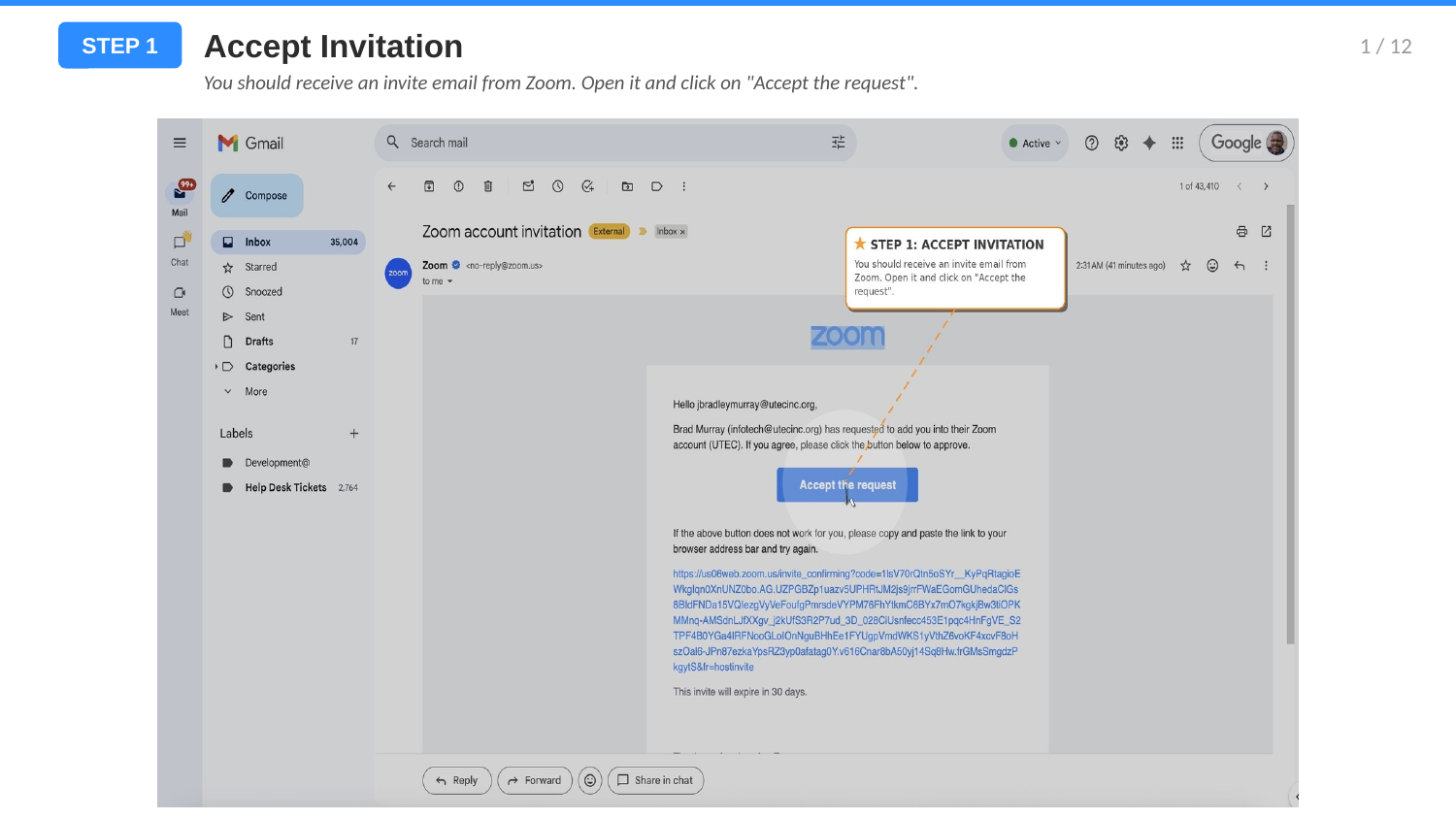
Step 1 — Accept Your Zoom Invitation
Check your @utecinc.org email for an invitation from Zoom. Click the activation link in the email to begin setting up your account.

Step 2 — Sign In to Zoom
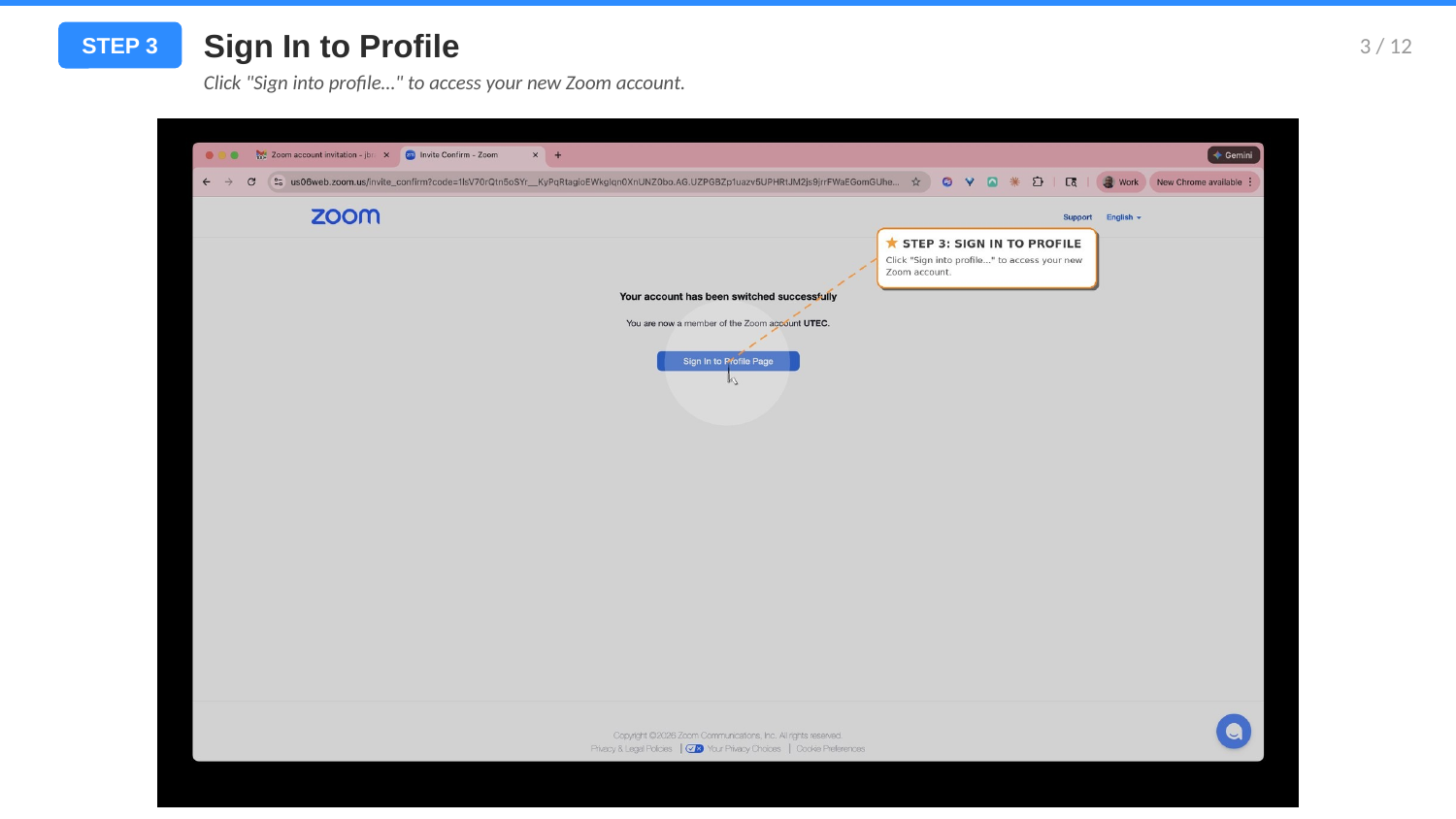
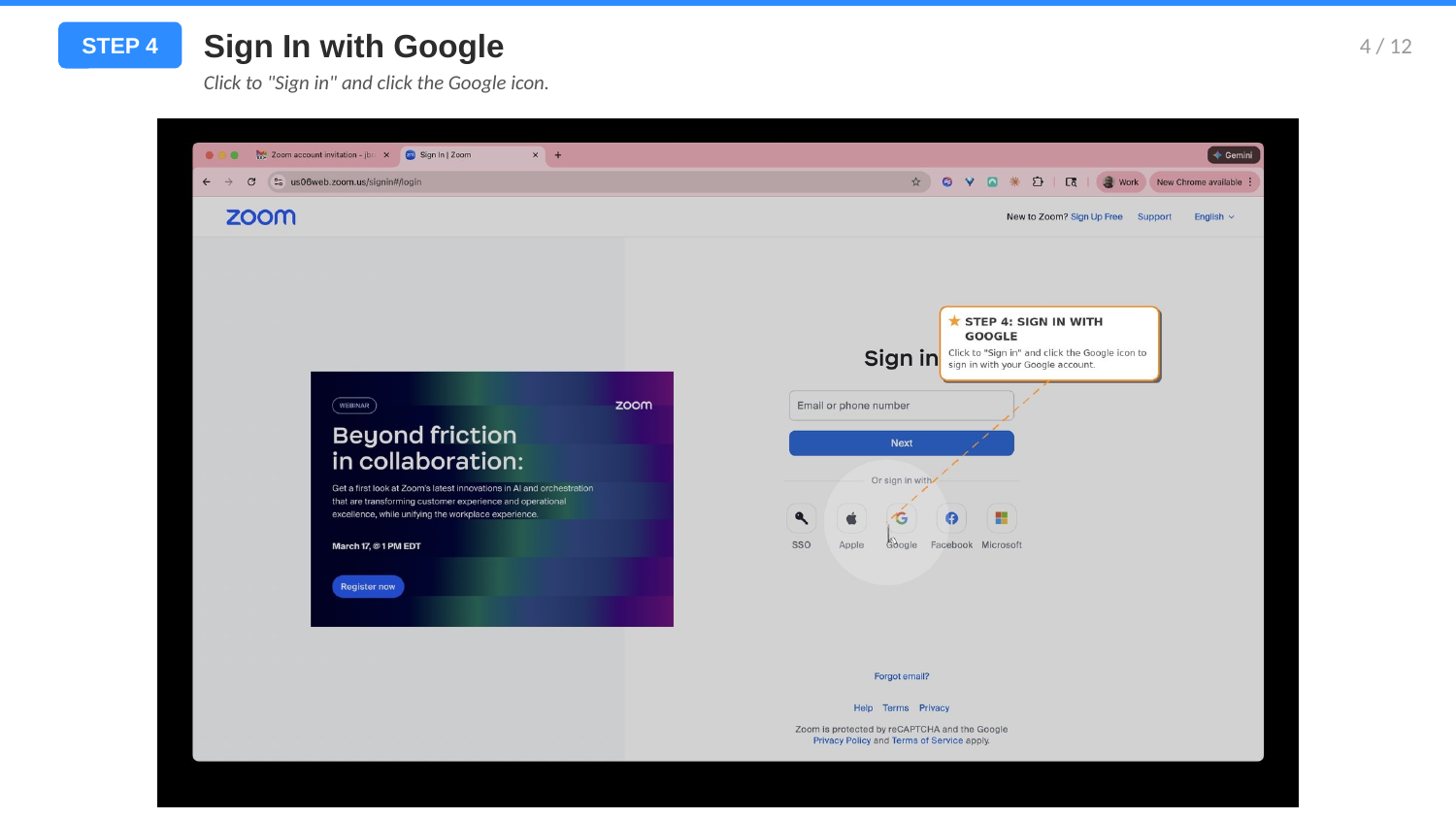
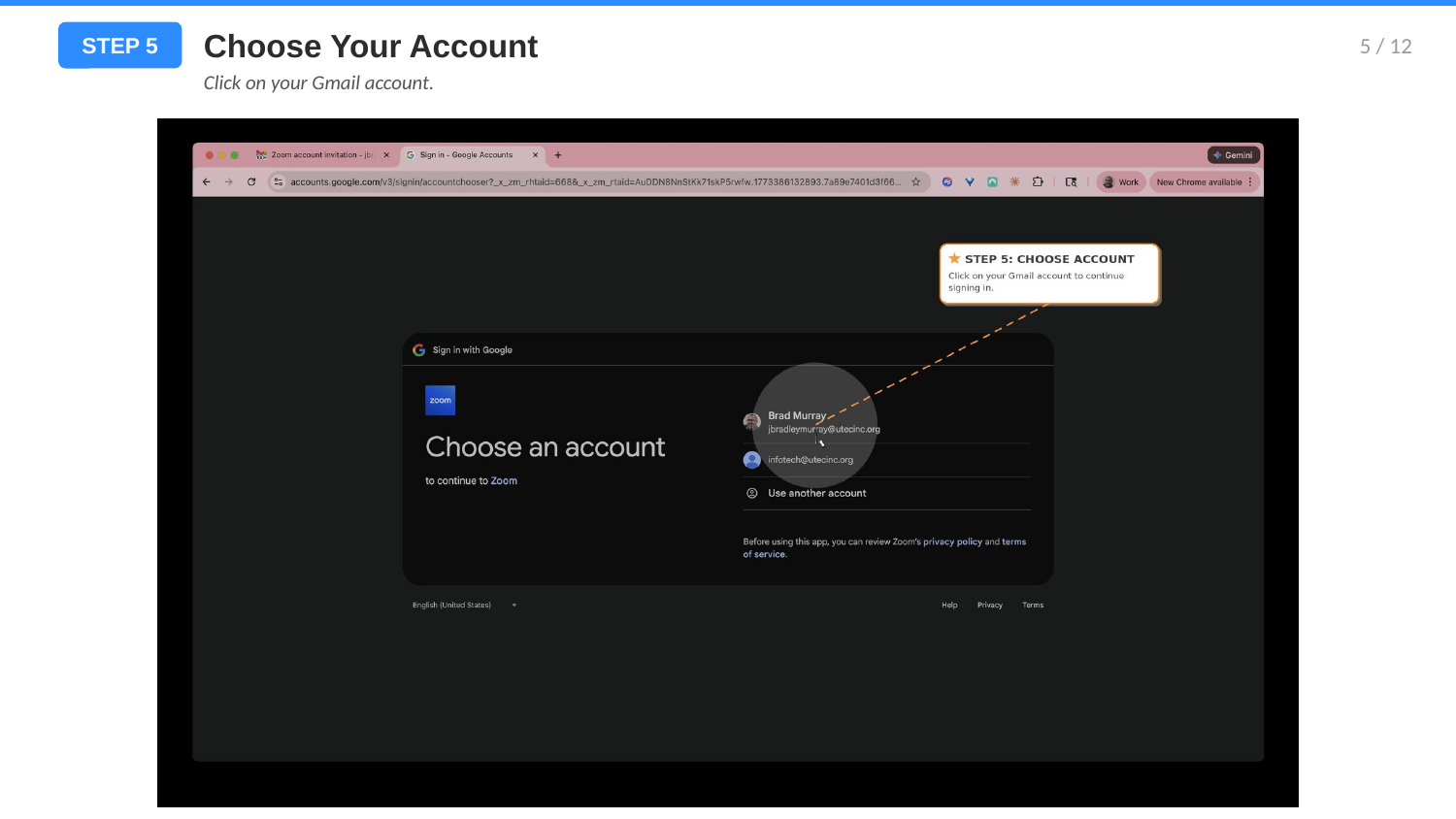
Go to zoom.us in your web browser. Sign in using the Google option and select your @utecinc.org account. Do not use the Zoom desktop app or Zoom app on your phone for this step.
Step 3 — Enable Zoom Phone
Click the Phone tab in the left sidebar of the Zoom app. You'll see a setup prompt — click Setup and create a voicemail PIN (4–6 digits).

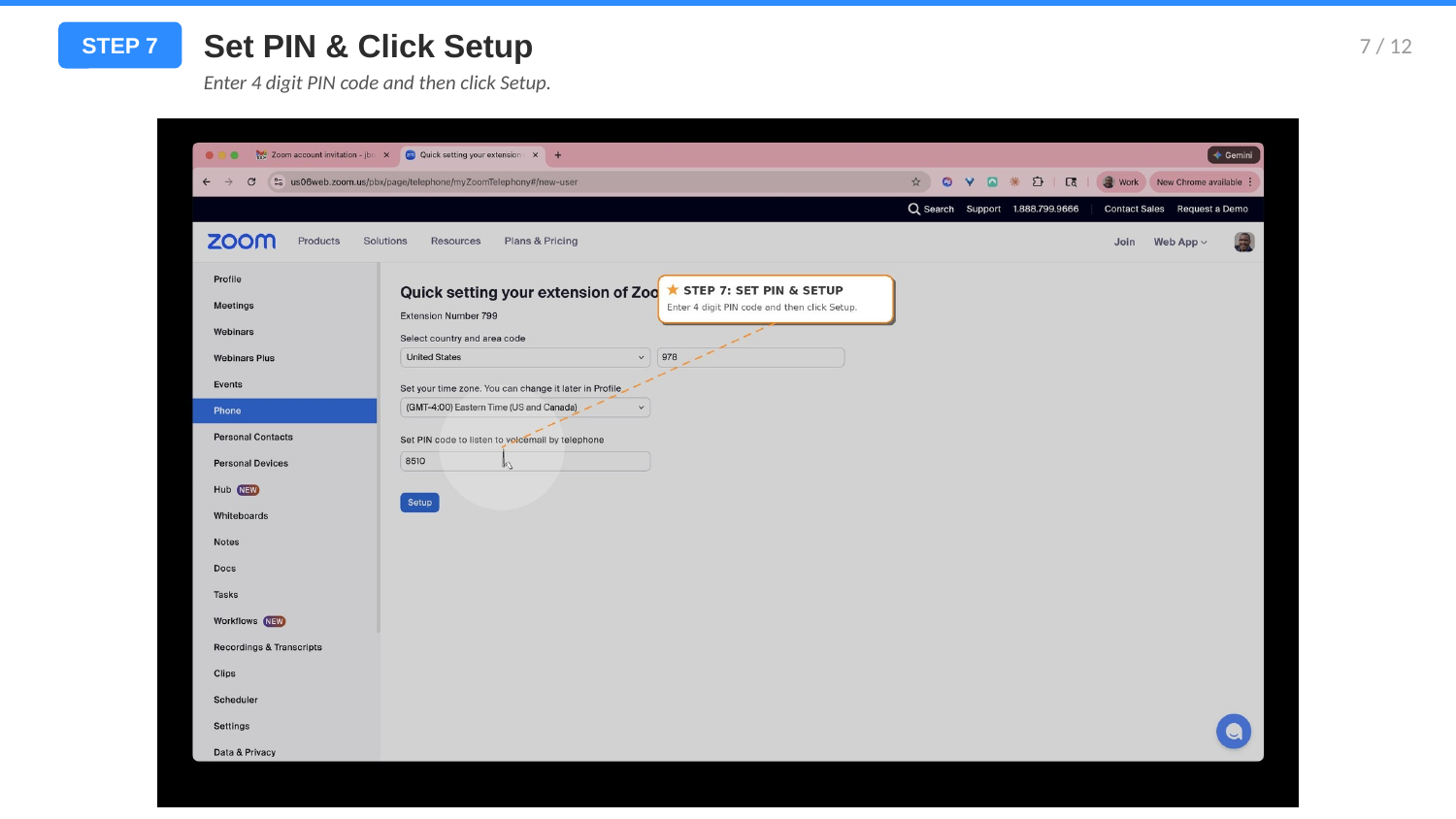
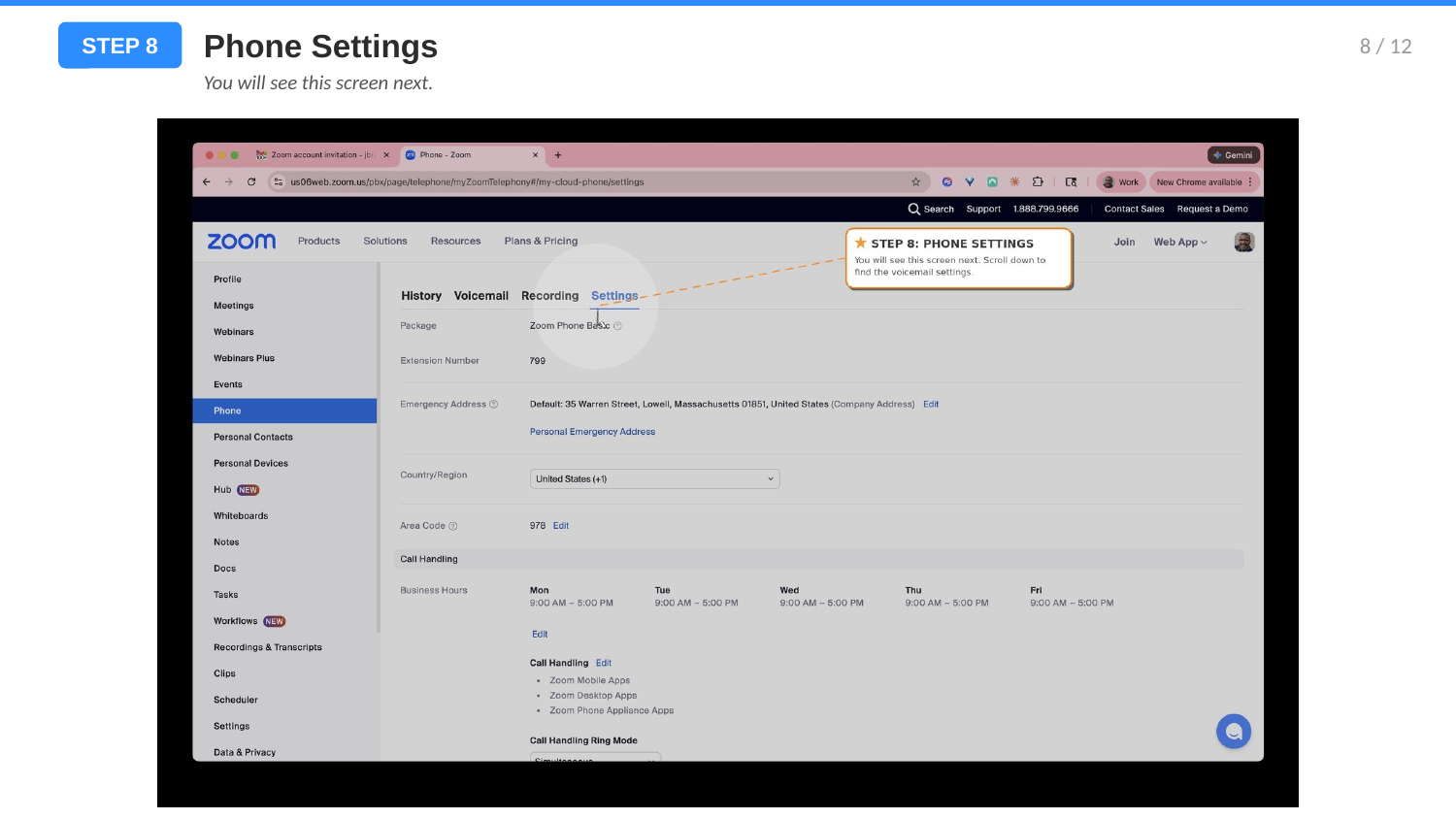
Step 4 — Set Up Your Voicemail
Go to the Zoom web portal to configure your voicemail greeting. You can record a custom greeting, upload an audio file, or keep the default.


Click each section below to expand the instructions.
Step 1 — Open Zoom and Make Sure You're Signed In
Go to zoom.us in your web browser. Make sure you're signed in with your @utecinc.org Google account. Do not use the Zoom desktop app or Zoom app on your phone for this step. If you're already signed in, you're all set — move to Step 2.
Step 2 — Enable Zoom Phone
Look for the Phone tab in the left sidebar of the Zoom app. Click it — you'll see a setup prompt asking you to create a voicemail PIN (4–6 digits).
Step 3 — Set Up Your Voicemail
Go to the Zoom web portal to configure your voicemail greeting. You can record a custom greeting, upload an audio file, or keep the default.
Using Zoom Phone — Day-to-Day Guide
Click any topic below to see step-by-step instructions for that specific task.
Making a Call
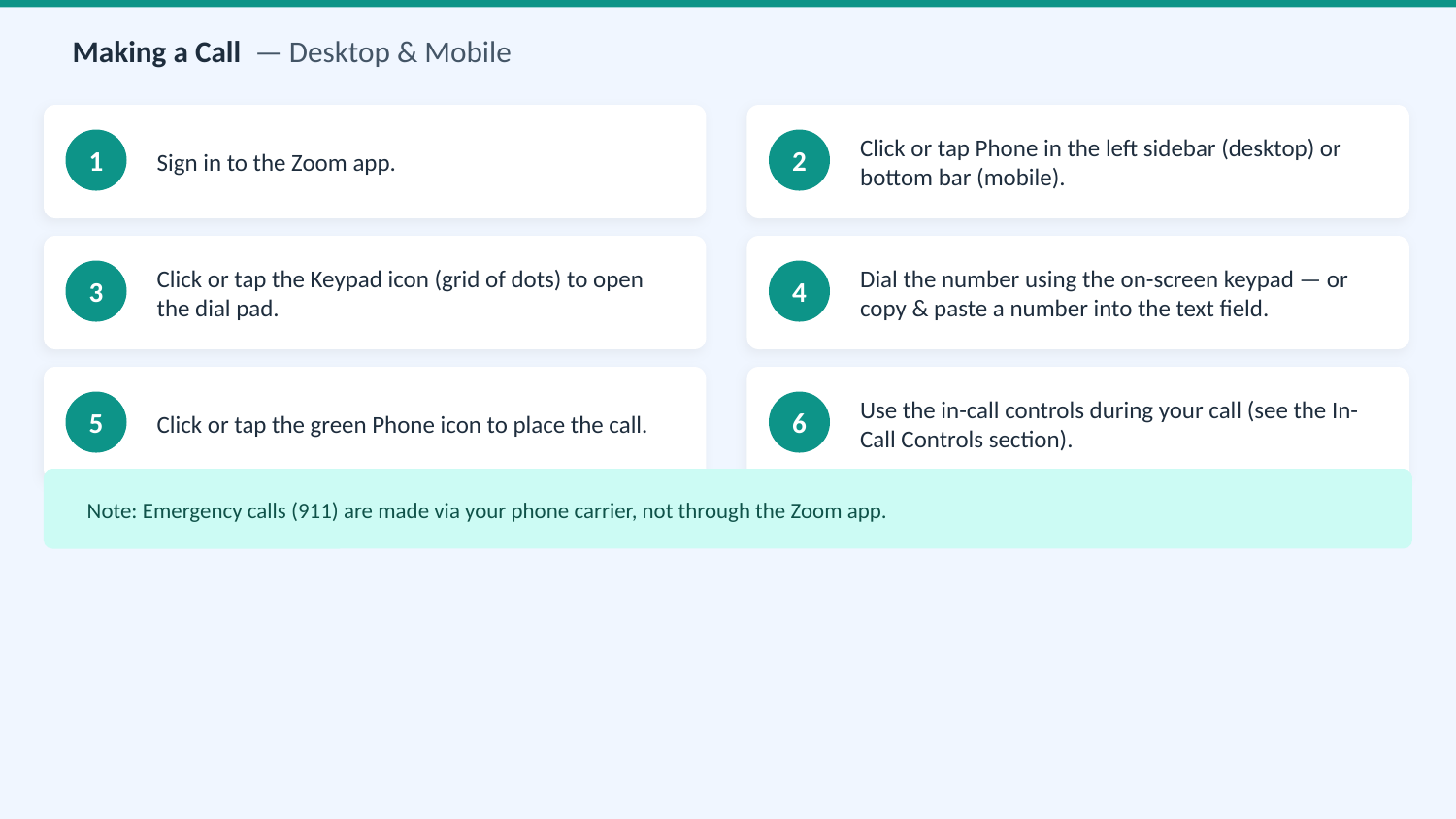
Open the Zoom app and click the Phone tab. Click the keypad icon to open the dial pad, enter the number, and click the green phone button to place the call.
Receiving a Call
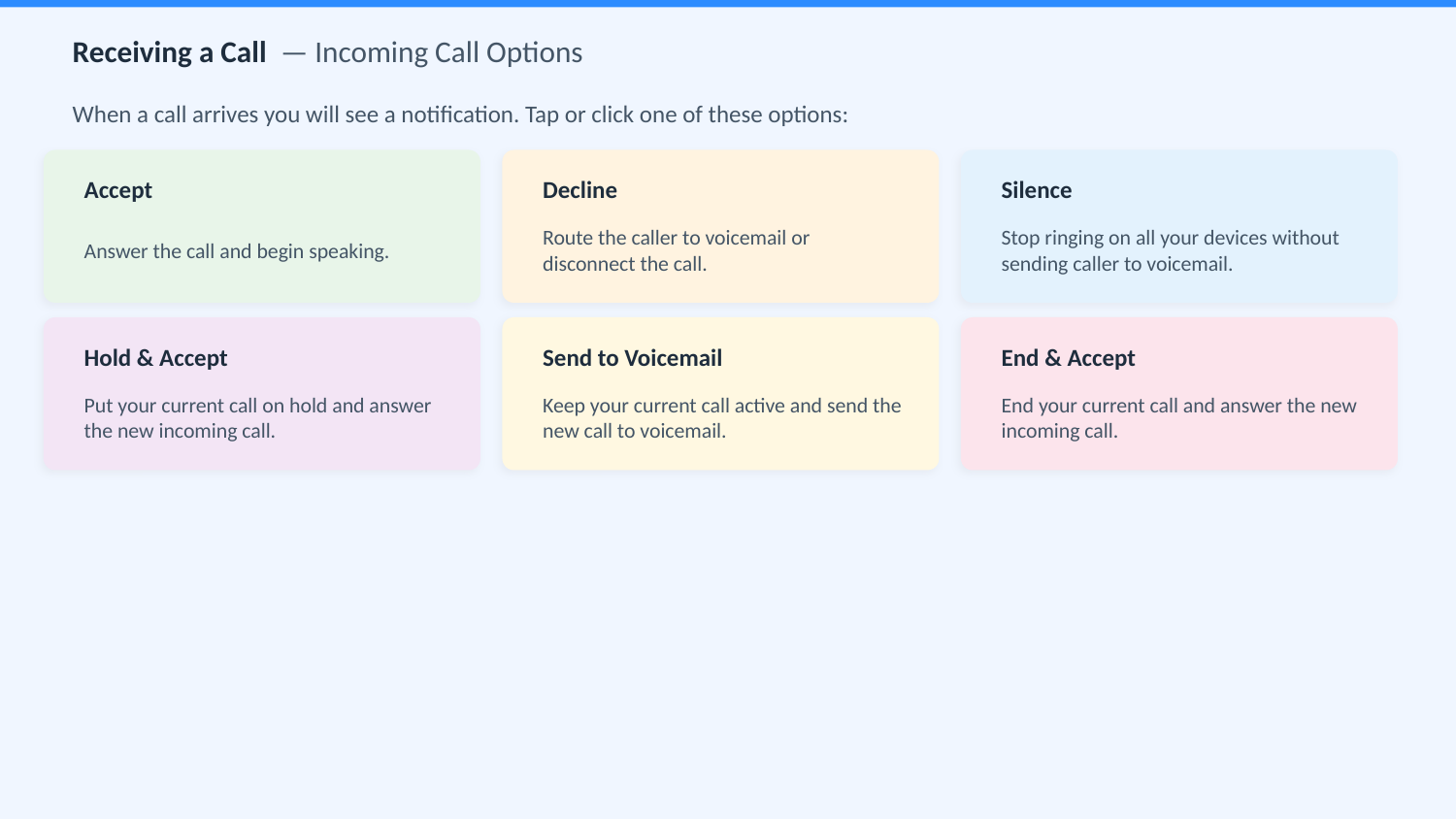
When someone calls your Zoom Phone number, a notification pops up. Click Accept to answer, Decline to send to voicemail, or Silence to stop ringing.
Checking Voicemail
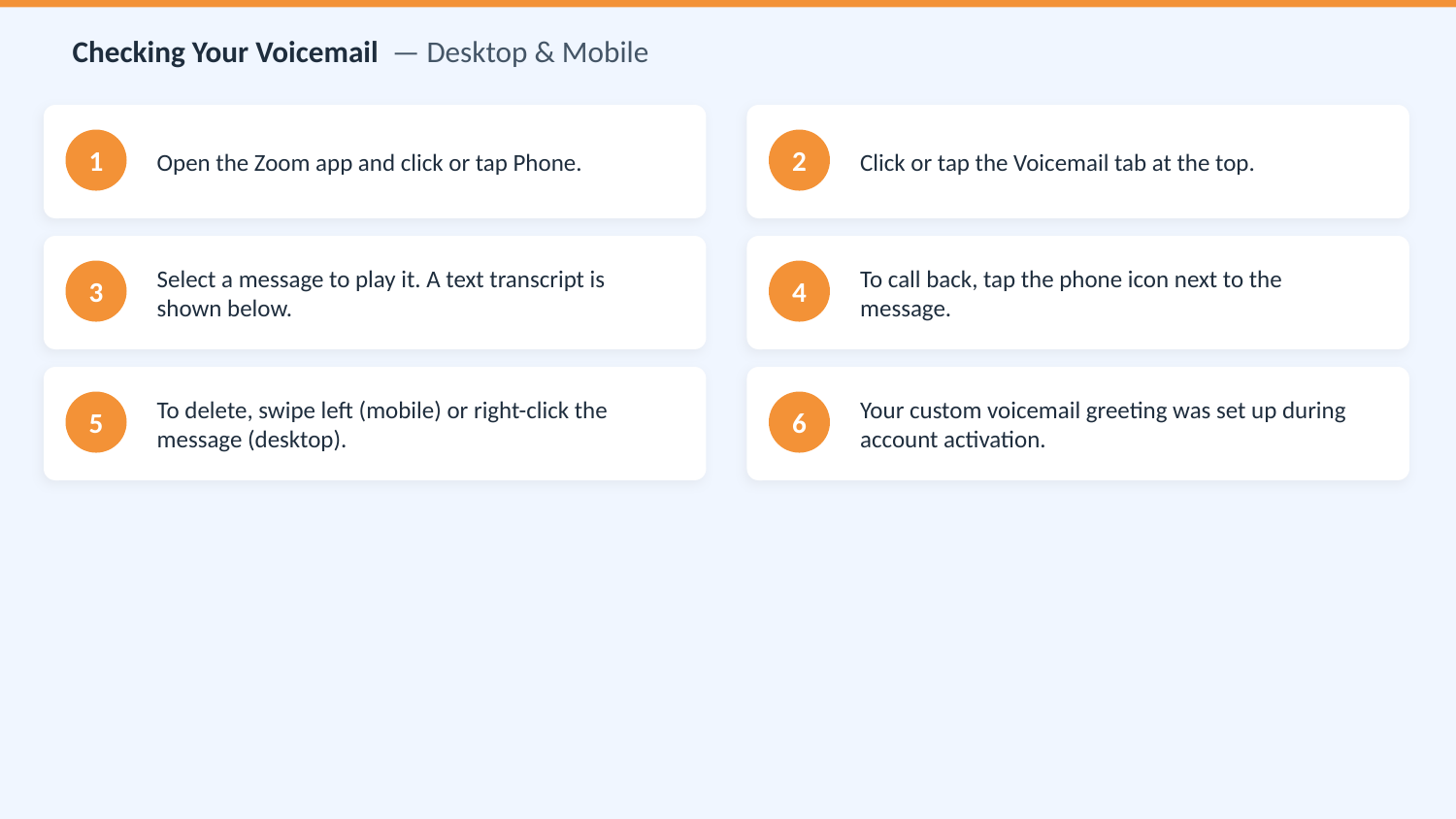
Click the Phone tab, then select the Voicemail tab. You'll see a list of all voicemail messages. Click any message to play it.
Setting Up Your Voicemail Greeting
Go to the Zoom web portal and navigate to Phone → Settings → Voicemail. You can record a greeting using your microphone, upload an audio file, or use the default system greeting.
Transferring a Call
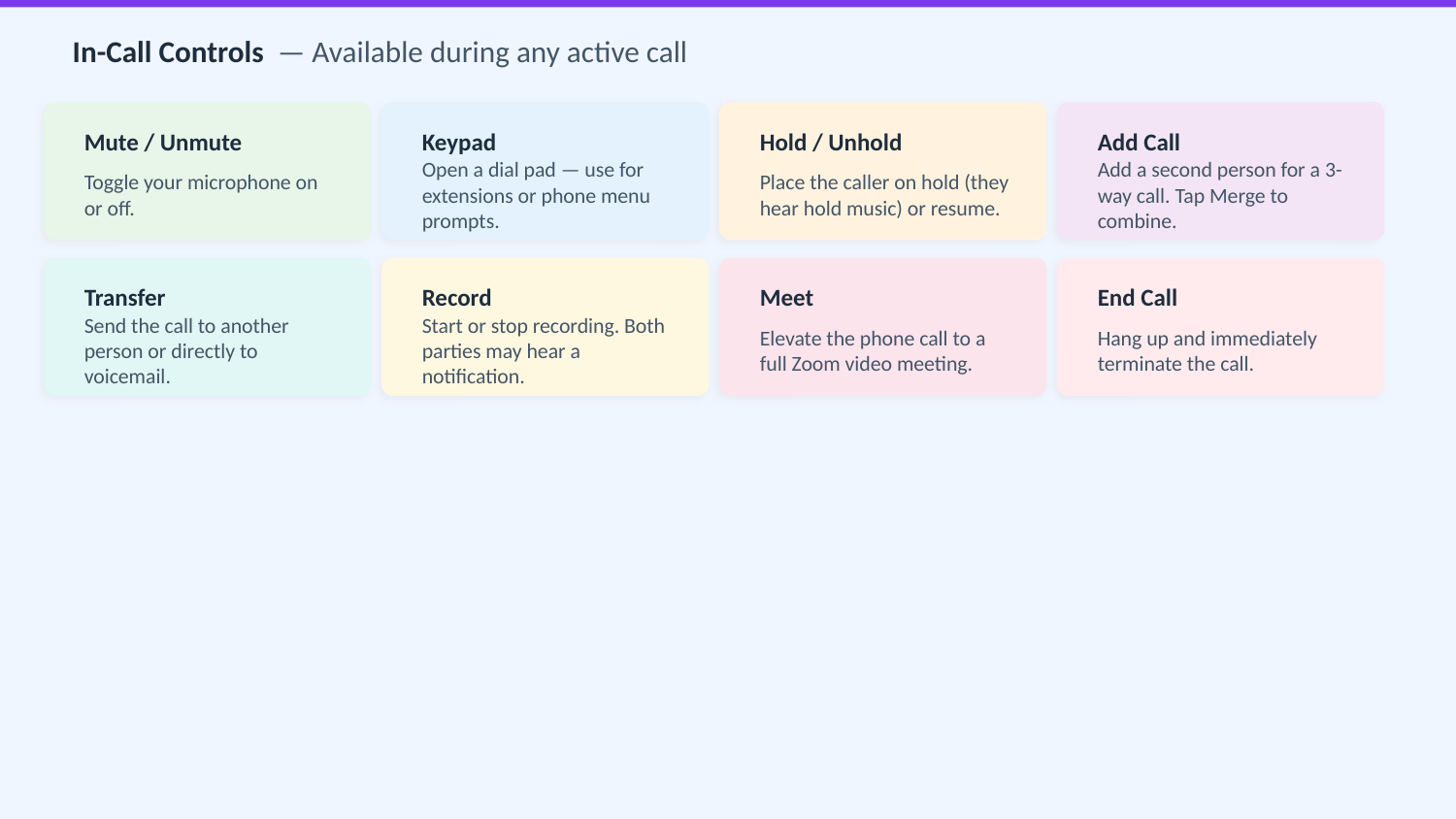
During an active call, click the Transfer button. Search for a colleague by name or enter a phone number.
Warm transfer: You speak to the other person first before connecting them to the caller. Use this when you need to give context.
Blind transfer: The caller is sent directly to the other person. Use this for straightforward transfers.
Putting a Call on Hold
During an active call, click the Hold button in the in-call controls. The caller hears hold music. Click Resume when you're ready to continue.
Using the Company Directory
In the Phone tab, click Contacts or use the search bar. Type a colleague's name to find them. Click their name to see their number and click the phone icon to call them.
Forwarding Calls
To forward all calls to another number, go to Phone → Settings in the Zoom app. Toggle on Call Forwarding and enter the number you want calls sent to.
Choose Where Your Calls Ring
You can control which devices ring when someone calls your Zoom Phone number. Go to Settings → Call Handling in the Zoom app or web portal.
- Sign in at
zoom.uswith your UTEC Google account, or open the Zoom desktop app. - Go to Phone → Settings → Call Handling.
- Under "When I receive a call, ring on", check the devices you want to ring:
- Zoom Mobile App — calls ring on your cell phone through the Zoom app.
- Zoom Desktop App — calls also ring on your computer.
Most common setup: If you just want calls to ring on your cell phone, check Zoom Mobile App only. If you also work at a desk, check both — but remember to keep the desktop app open.
Do Not Disturb
When you need to block calls — during a meeting, on a break, or after hours — turn on Do Not Disturb (DND). All incoming calls go straight to voicemail.
On desktop:
- Click your profile picture in the top-right corner of Zoom.
- Click Availability and select Do Not Disturb.
- To turn it off, click Availability again and choose Available.
On mobile:
- Open the Zoom app and tap More (bottom-right).
- Tap your name or profile picture at the top.
- Tap Availability and select Do Not Disturb.
- To turn it off, tap Availability again and choose Available.
Install Zoom Phone on Your Mobile Device
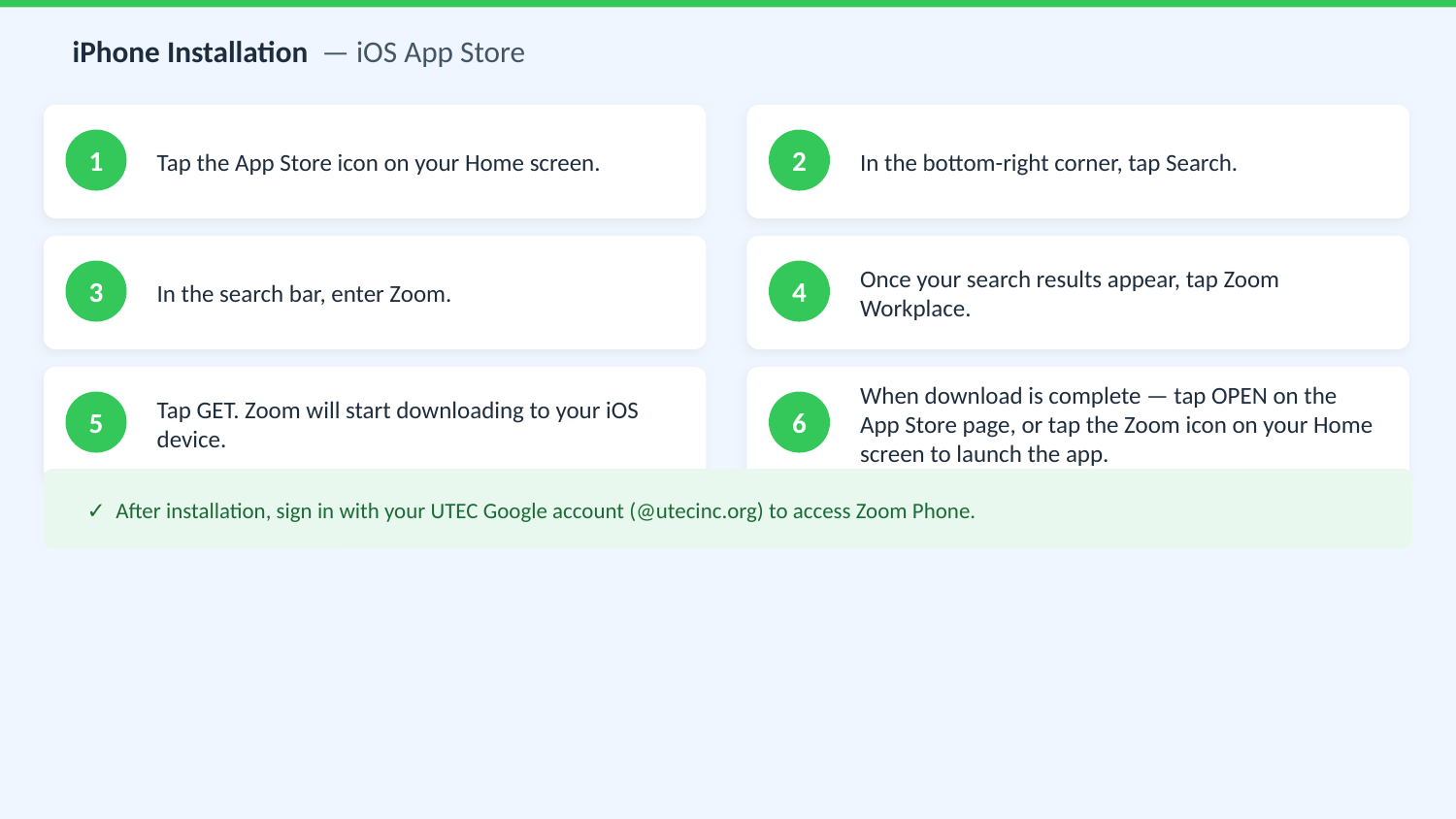
Download the Zoom Workplace app to take calls on your iPhone or Android phone. Already have the app? Jump straight to the section you need.
Download the Zoom App
Download the Zoom Workplace app from your device's app store.
iPhone:
Android:
Android Installation — Google Play Store
Sign In on Your Phone
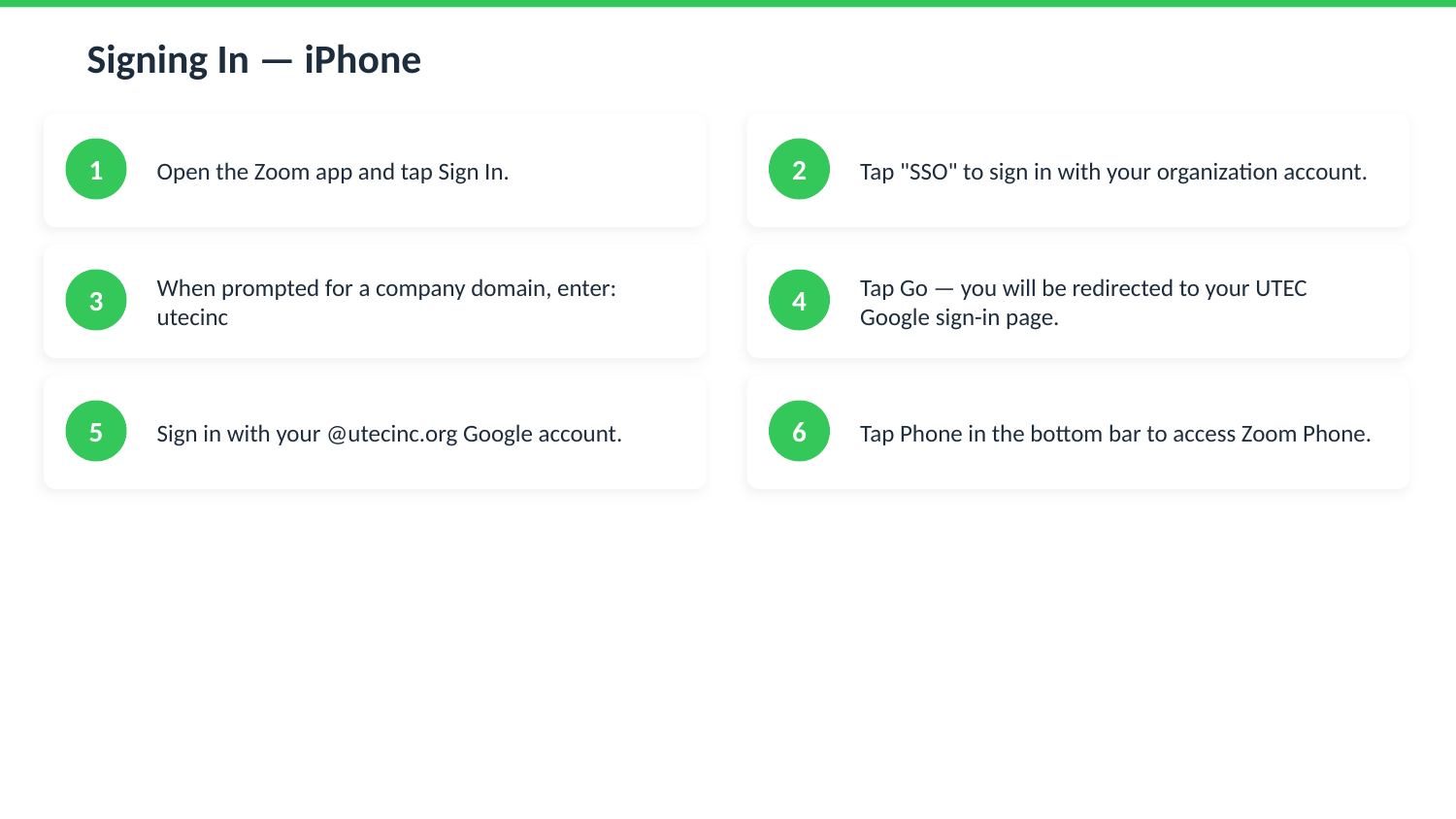
Sign-in steps differ slightly by device. Follow the instructions for your phone below.
iPhone:
Android:
Signing In — Android
Allow Notifications & Permissions
Your phone will ask for several permissions:
- Microphone: Required — this is what lets you talk on calls.
- Notifications: Required — without this, you won't know when someone is calling.
- Contacts: Optional — allows you to see your phone contacts inside Zoom.
Audio & Call Quality on Mobile
When you answer a Zoom Phone call on your mobile device, the audio may take a moment to connect — especially if you use Bluetooth headphones or your car's speaker system. Here's how to make it seamless:
Before your first call:
- Open the Zoom app on your phone.
- Tap More (bottom-right) → Settings → Phone.
When answering a call:
- If you're using Bluetooth (headphones, earbuds, or car speakers), give it 2–3 seconds after tapping Accept for the audio to connect. You may see a brief "Connecting..." message.
- If you can't hear the caller, tap the Speaker button on the call screen and switch between Bluetooth, Speaker, or iPhone/Android earpiece to find the active output.
- If the other person can't hear you, check that your phone's microphone isn't blocked and that Zoom has microphone permission in your phone's Settings.
Mobile-Specific Settings
Do Not Disturb: Tap your profile picture → Set status to Do Not Disturb. (See the How to Use the Phone page for full steps.)
Notifications not working? Check your phone's Settings and make sure Zoom has permission to send notifications.
Wi-Fi vs. cellular: Zoom Phone works on both. For best call quality, use Wi-Fi when possible.
FAQ & Troubleshooting
Common questions, troubleshooting steps, known issues, and how to get additional help.
Common Questions
What is my new Zoom Phone number?
Your Zoom Phone number was assigned when IT provisioned your account. You can find it in two places:
- Open the Zoom app and click or tap Phone in the sidebar.
- Your assigned number appears at the top of the Phone screen.
Alternatively, sign in to the Zoom web portal at zoom.us, go to Profile, and look for the Phone Number field.
Can I keep my existing phone number (number porting)?
Number porting — transferring your current phone number to Zoom — may be possible depending on your carrier. This is handled by UTEC IT in coordination with Zoom support. The process typically takes 2–4 weeks.
If you need your existing number ported, contact IT Support with the following information:
- Current phone number
- Current carrier name
- Account holder name on the carrier account
How do I set up call forwarding?
Call forwarding is managed through the Zoom web portal:
- Go to
zoom.usand sign in with your UTEC Google account. - Click Phone in the left sidebar, then select Settings.
- Under Call Handling, find the Forward to option.
- Enter the number or extension you want calls forwarded to.
- Set the conditions (e.g., forward when busy, when unanswered, or always).
- Click Save.
How do I set up or change my voicemail greeting?
Your voicemail greeting is managed in the Zoom web portal. You can record a custom greeting or upload an audio file:
- Sign in at
zoom.uswith your UTEC Google account. - Click Phone → Settings.
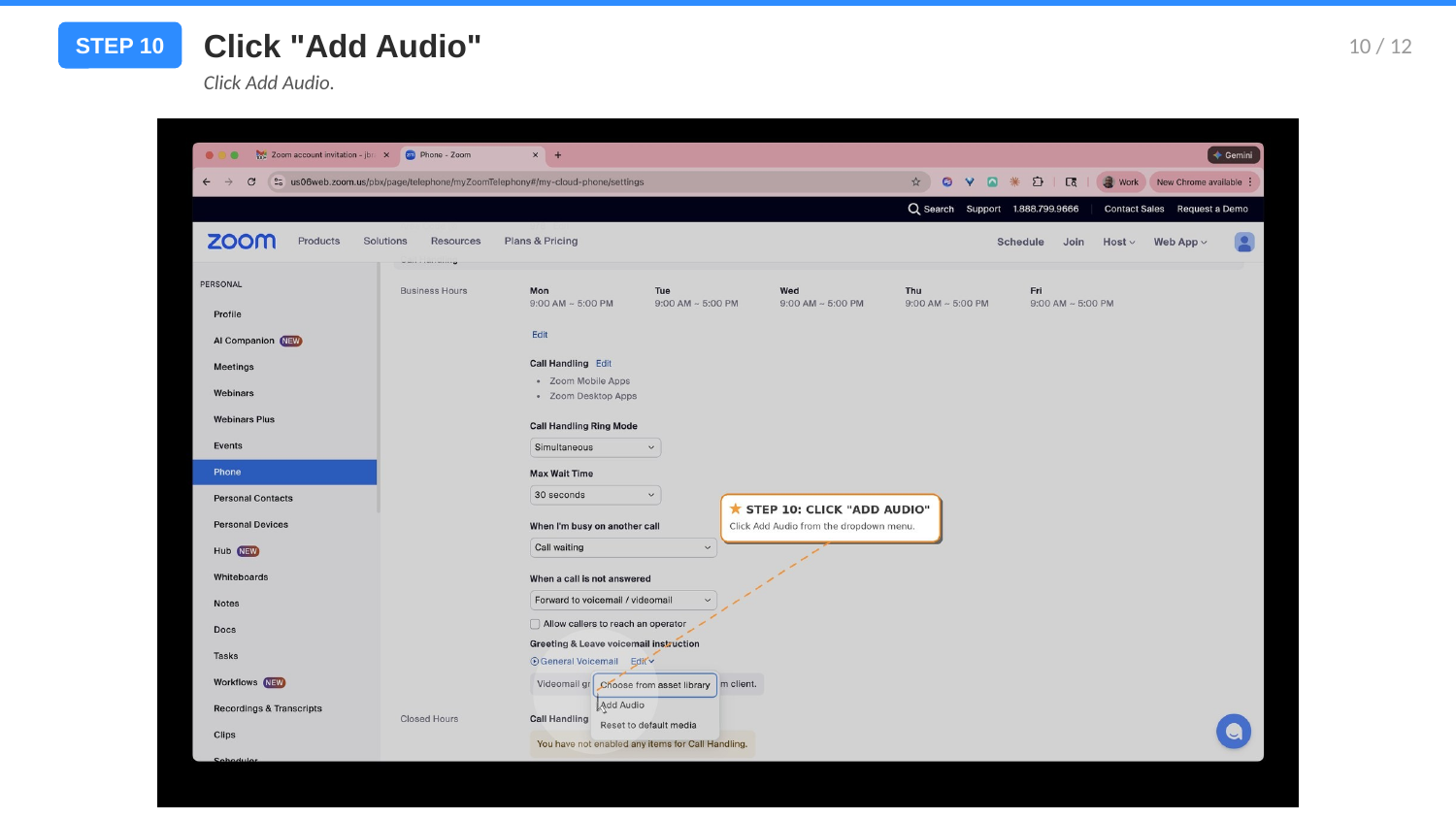
- Scroll down to Greeting & Leave Voicemail Instruction.
- Click Edit next to the voicemail greeting.
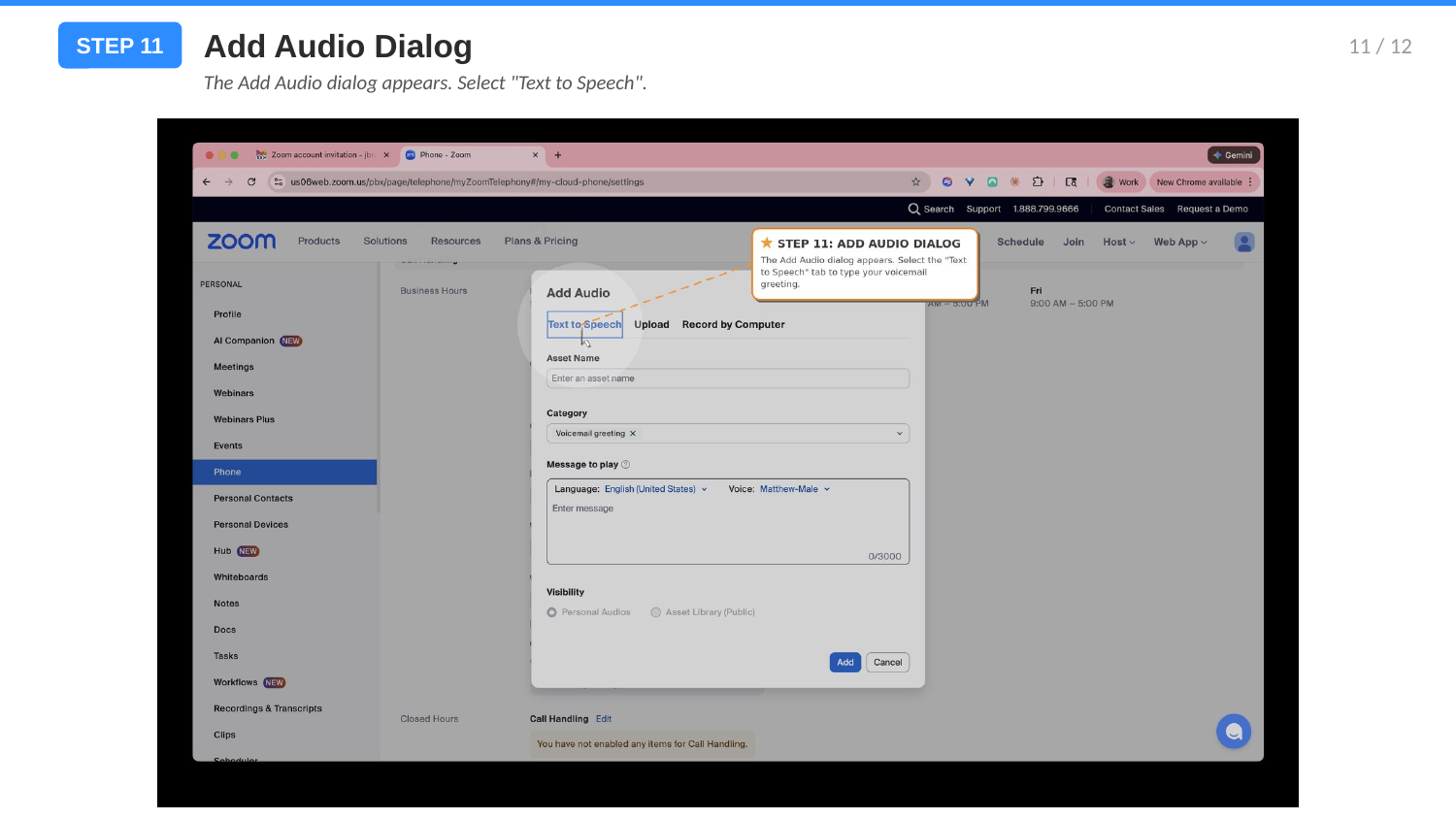
- Choose Add Audio and either record directly in your browser or upload an MP3/WAV file.
- Save your changes.
See the Account Setup guide (slides 9–12) for annotated screenshots of this process.
How do I access my voicemail messages?
- Open the Zoom app and click or tap Phone.
- Select the Voicemail tab at the top.
- Click or tap any message to play it. A text transcript appears below the playback controls.
- To call back: tap the phone icon next to the message.
- To delete: swipe left on mobile, or right-click the message on desktop.
Can I use Zoom Phone on my personal mobile device?
Yes. Install the Zoom Workplace app from the App Store (iPhone) or Google Play (Android), then sign in with your @utecinc.org Google account. Sign-in steps differ by device — see the Mobile App Setup guide for your specific phone.
See the Mobile App Setup guide for step-by-step installation instructions for both iOS and Android.
How do I transfer a call to another person?
During an active call, you have two transfer options:
- Click or tap the Transfer button in the in-call controls.
- A dialog will appear — search for a colleague by name or enter their number.
- Choose Warm Transfer (stay on the line until the other person picks up) or Blind Transfer (transfer immediately without waiting).
- Confirm the transfer.
What happens to my calls when I'm away or on Do Not Disturb?
Do Not Disturb: Set your status to DND in the Zoom app. All incoming calls will go directly to voicemail. Your status appears as a moon icon to other users.
Away: Setting your status to Away does not automatically forward calls — callers will still ring through. Use call forwarding or DND to control call routing when you're unavailable.
Offline / App closed: If the Zoom app is not running on any device, calls typically go to voicemail after a short ring period.
Can I make and receive calls from a web browser (no app)?
Yes, with limitations. Zoom Phone is accessible via browser at zoom.us → Phone, but the full calling experience (including receiving inbound calls) requires the desktop or mobile app to be running.
For reliable call handling — especially receiving calls — it is strongly recommended to keep the Zoom desktop or mobile app installed and running.
How do I find a colleague's extension or direct number?
- Open the Zoom app and click or tap Phone.
- Select the Contacts tab.
- Search by name to find any UTEC employee with a Zoom Phone number.
- Click their name to call them directly.
You can also dial colleagues by their extension directly from the keypad — check with IT for the internal extension list.
Troubleshooting
- Check that your microphone and speaker (or headset) are not muted at the system level.
- In the Zoom app, click your profile picture → Settings → Audio. Select the correct input and output devices.
- Ensure Zoom has microphone permission: on Mac, check System Settings → Privacy & Security → Microphone. On Windows, check Settings → Privacy → Microphone.
- Try ending and restarting the call.
- Restart the Zoom app and attempt the call again.
- When prompted for the company domain, enter exactly: utecinc (no spaces, no .org).
- Make sure you're signing in via SSO — not with an email/password or a personal Zoom account.
- Ensure you're using your
@utecinc.orgGoogle account, not a personal Gmail. - Clear your browser cache and try again, or try a different browser.
- Sign out of all Zoom sessions at
zoom.us/profileand sign back in.
- Force-quit the Zoom app and reopen it.
- Check for updates: click your profile picture → Check for Updates. Install any available update.
- Restart your computer or mobile device.
- Uninstall and reinstall the Zoom app (your settings and call history are stored on Zoom's servers and will sync back).
- If crashes continue, note the time and contact IT — they can pull diagnostic logs.
- Check that your device volume is turned up and not on silent/vibrate-only.
- In the Zoom app, go to Settings → Audio and confirm your ringtone output device is correct.
- Make sure your status is not set to Do Not Disturb.
- Check Zoom's notification settings in your OS (Mac: System Settings → Notifications → Zoom; Windows: Settings → Notifications → Zoom).
- On mobile, ensure Zoom app notifications are enabled in your phone's notification settings.
- Make sure the Zoom app is not in a paused/background-restricted state on mobile.
- Confirm your account has been provisioned with a Zoom Phone license. Not all Zoom accounts include Phone — check with IT.
- Sign out of the Zoom app and sign back in using SSO (
utecinc). - Update to the latest version of the Zoom app.
- If still missing after the above steps, contact IT — your license may need to be re-assigned.
- Check your internet connection — Zoom Phone requires a stable broadband connection (minimum 1 Mbps up/down for voice calls).
- Move closer to your Wi-Fi router, or connect via Ethernet if possible.
- Close other bandwidth-heavy applications (video streaming, large downloads).
- Try a different headset or audio device to rule out hardware issues.
- In Zoom Settings → Audio, disable Enable Original Sound if it's on, and ensure noise suppression is enabled.
Known Issues
zoom.us.
Get Additional Help
When to contact IT Support (vs. self-resolve)
- You've followed the troubleshooting steps above and the issue persists
- You cannot sign in and SSO troubleshooting has not resolved it
- Your Zoom Phone number is incorrect or missing
- You need a number ported from your existing carrier
- You need call forwarding configured to an outside line
- Another user is experiencing the same issue (possible account-level or network issue)
- You receive any error codes — include the exact error message when contacting IT